
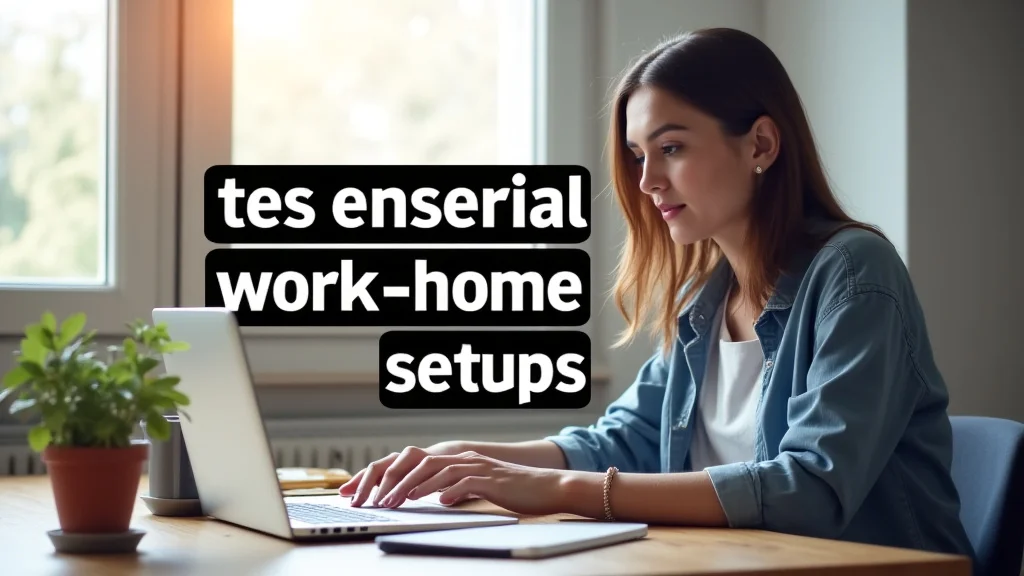
Remember those early days of working from home, scrambling for a comfortable spot, battling Wi-Fi drops, and wondering if anyone could hear your dog bark during a crucial meeting? Many of us have been there. Setting up a functional and productive home office doesn’t have to be a struggle.
This guide will help you discover the best work from home essentials to create a space that boosts your focus, comfort, and efficiency. You’ll learn how to choose the right tools and organize your setup for maximum productivity, saving you time and reducing the frustration of a less-than-ideal workspace.
Key Takeaways
- Identify comfortable and ergonomic furniture for long workdays.
- Select reliable technology for seamless communication and task completion.
- Organize your workspace to minimize distractions and maximize efficiency.
- Prioritize good lighting and air quality for well-being and focus.
- Explore productivity tools that can streamline your workflow.
- Learn how to set boundaries to maintain a healthy work-life balance.
Setting Up Your Productive Workspace
Creating a dedicated workspace is one of the first and most important steps to successful remote work. This area should ideally be separate from your living spaces to help you mentally switch between work and personal life. Even a small corner can be transformed into an effective office with the right approach.
The goal is to make this space conducive to concentration and free from unnecessary interruptions.
Choosing the Right Desk and Chair
Your desk and chair are the foundation of your home office. Investing in ergonomic furniture can prevent discomfort and long-term health issues. A desk that is the correct height reduces strain on your wrists and shoulders.
Look for one with ample surface area for your computer, documents, and other work necessities. It should be sturdy and provide enough legroom.
A good office chair is equally critical. It should offer proper lumbar support to protect your back. Adjustable features like height, armrests, and tilt allow you to customize the chair to your body.
This personalization ensures you can maintain good posture throughout the day, which is vital for comfort and sustained focus. Without proper support, back pain and fatigue can significantly hinder your productivity.
- Desk Selection Criteria
When selecting a desk, consider its dimensions to fit your space and your needs. A standing desk option can be beneficial for varied work positions, promoting better circulation and reducing sedentary time. Look for desks with built-in storage or consider adding desktop organizers to keep your work surface tidy.
The material and design of the desk should also complement your room’s aesthetic.
- Chair Features for Comfort
A chair with a breathable mesh back can prevent overheating during long work sessions. The seat cushion should be firm enough to provide support but soft enough for comfort. Swivel and rolling casters offer mobility, allowing you to easily move around your workspace without straining.
Test chairs if possible to ensure they feel right for your body.
Desk and Chair Comparison
| Feature | Standard Desk | Standing Desk | Standard Office Chair | Ergonomic Office Chair |
|---|---|---|---|---|
| Primary Benefit | Cost-effective, simple setup | Promotes movement, health benefits | Basic seating solution | Superior comfort, support, and health benefits |
| Adjustability | Limited to none | Height adjustable | Limited (usually just height) | Height, armrest, tilt, lumbar support adjustable |
| Ergonomics | Basic | Good for reducing sedentary time | Moderate | Excellent |
| Ideal For | Budget-conscious, short work periods | Those seeking active work habits, health-conscious individuals | Occasional home office use | Full-time remote workers, those with back concerns |
Creating an Ergonomically Sound Setup
Ergonomics is about designing your workspace to fit you, rather than forcing yourself to fit the workspace. This means positioning your monitor at eye level to prevent neck strain. Your keyboard and mouse should be close enough so your elbows are at a 90-degree angle when typing.
Keep your feet flat on the floor or on a footrest. Proper ergonomic setup can prevent repetitive strain injuries and general physical discomfort, allowing you to work longer and more effectively.
Monitor Placement
The top of your monitor screen should be at or slightly below eye level. This ensures you are looking slightly downwards, which is the most natural and comfortable position for your neck and eyes. If your monitor is too low, you might hunch over, leading to neck and shoulder pain.
If it’s too high, you’ll be tilting your head back, causing strain. Using monitor stands or reams of paper can help achieve the correct height if your desk or monitor doesn’t have built-in adjustments.
Keyboard and Mouse Positioning
Your keyboard should be positioned so that your wrists are straight and not bent upwards or downwards while typing. This often means the keyboard should be at a height that allows your forearms to be parallel to the floor. Similarly, your mouse should be within easy reach, allowing you to use it without extending your arm or twisting your wrist.
Consider an ergonomic keyboard or mouse if you experience wrist discomfort.
Foot Support
If your feet don’t comfortably rest flat on the floor, a footrest is a great addition. This helps maintain proper posture by supporting your legs and reducing pressure on your lower back. It also improves circulation in your legs.
Ensure the footrest is adjustable or has a shape that allows you to change your foot position throughout the day.
Essential Technology and Tools
Reliable technology is the backbone of any effective remote work setup. This includes a stable internet connection, a good computer, and essential communication tools. These components work together to ensure you can perform your job duties efficiently and stay connected with your colleagues and clients.
Internet Connectivity and Wi-Fi
A strong and stable internet connection is non-negotiable for remote work. Slow or unreliable Wi-Fi can lead to dropped calls, delayed file transfers, and general frustration. Consider upgrading your internet plan if necessary.
A high-quality Wi-Fi router can also make a significant difference, especially if you work in a larger home or have multiple devices connected.
When choosing an internet service provider (ISP), look for plans that offer high download and upload speeds. Upload speeds are particularly important for video conferencing and sending large files. Consider the type of connection available in your area, such as fiber optic, cable, or DSL, as they offer different performance levels.
Wi-Fi Router Placement and Optimization
The placement of your Wi-Fi router can significantly impact signal strength. Try to position it in a central location in your home, away from obstructions like thick walls, metal objects, and other electronic devices that can cause interference. Raising the router off the floor can also improve signal distribution.
Regularly updating your router’s firmware can enhance its performance and security.
- Speed Requirements
For basic tasks like email and web browsing, lower speeds might suffice. However, for video conferencing, streaming, and downloading large files, you’ll need higher speeds. A minimum of 25 Mbps download and 3 Mbps upload is often recommended for a single user, but for multiple users or more demanding tasks, 100 Mbps or higher is preferable.
- Mesh Wi-Fi Systems
If you experience dead zones or weak signals in parts of your home, a mesh Wi-Fi system can provide seamless coverage. These systems use multiple nodes placed around your home to create a single, strong Wi-Fi network, eliminating buffering and dropped connections.
Computer and Peripherals
Your computer is your primary tool. Ensure it is powerful enough to handle your daily tasks. This includes having enough RAM for multitasking and a processor that can run necessary software smoothly.
Don’t forget essential peripherals like a comfortable keyboard, a precise mouse, and a good quality webcam for video calls.
A reliable webcam is crucial for professional communication. Most built-in laptop webcams are adequate for basic use, but an external webcam can offer better video quality, wider field of view, and improved low-light performance. Similarly, a headset with a microphone is invaluable for clear audio during calls, reducing background noise and preventing echoes.
Essential Peripherals
A separate monitor can greatly improve productivity by allowing you to view multiple documents or applications side-by-side. External keyboards and mice offer better ergonomics than those built into laptops. Consider a large-screen monitor for comfortable viewing of detailed work or a dual-monitor setup for advanced multitasking.
- Webcam Quality
Look for webcams with at least 1080p resolution for clear images. Features like autofocus, a good frame rate (30 fps or higher), and low-light correction are beneficial. A physical privacy shutter adds an extra layer of security.
- Headset Benefits
A good headset not only ensures clear audio for you but also for your colleagues by filtering out ambient noise. This is especially important if you live in a busy household or have pets. Noise-canceling microphones are a significant advantage.
Software for Productivity and Communication
The right software can transform how you work. This includes communication platforms like Slack or Microsoft Teams, project management tools such as Asana or Trello, and cloud storage solutions like Google Drive or Dropbox. These tools help keep your team connected and your projects organized.
Many companies provide access to these tools, but if you’re a freelancer or part of a small team, choosing the right set is important. Look for software that integrates well with other applications you use. Simple, intuitive interfaces often lead to faster adoption and better utilization by your team.
Consider the security features of any cloud-based software you use. Ensure that data is encrypted and that the provider has strong privacy policies. Regular backups of your important files are also a good practice, whether through cloud services or an external hard drive.
Statistics show that effective communication tools can boost team productivity by up to 25%. This highlights the importance of selecting platforms that facilitate seamless interaction and collaboration among remote team members.
Organization and Environment for Focus
A tidy and comfortable environment is key to maintaining focus and reducing stress. This involves decluttering your workspace, managing cables, and ensuring good lighting and air quality. A well-organized space minimizes distractions and promotes a more professional atmosphere.
Decluttering and Storage Solutions
A cluttered desk can lead to a cluttered mind. Regularly declutter your workspace, keeping only essential items within reach. Invest in storage solutions like shelves, drawers, or filing cabinets to keep documents and supplies organized.
Cable management solutions, such as ties, sleeves, or clips, can tidy up wires and prevent them from becoming a hazard or an eyesore.
Before buying storage, assess what you need to store. Are you dealing mostly with paper documents, or is it more about office supplies and tech gadgets? Modular storage systems can be adapted as your needs change.
Vertical storage can be especially useful in smaller spaces, utilizing wall space effectively.
Desk Organization Tips
Use desktop organizers for pens, notepads, and other small items. A monitor stand with built-in storage can also provide extra space. Keep frequently used items within arm’s reach, and less frequently used items stored away neatly.
A clean workspace makes it easier to find what you need quickly.
- Minimalist Approach
Embrace a minimalist approach to your desk setup. Only keep items that are essential for your immediate tasks. This reduces visual clutter and helps you focus on what’s important.
For example, instead of having stacks of papers, consider digitizing them or using a simple inbox system for pending items.
- Vertical Storage
Utilize wall space with floating shelves or wall-mounted organizers. This is an excellent way to store books, binders, or decorative items without taking up valuable desk or floor space. Pegboards can also be highly versatile for hanging supplies and tools.
Lighting and Air Quality
Good lighting is crucial for reducing eye strain and improving mood. Natural light is ideal, so position your desk near a window if possible. Supplement natural light with good artificial lighting, such as a desk lamp that provides adjustable, bright light.
Avoid glare on your screen by positioning lights correctly. Proper air quality is also important for concentration and overall health. Ensure your workspace is well-ventilated, and consider an air purifier if needed.
Poor lighting can cause headaches, fatigue, and reduce productivity. Aim for a balanced lighting setup that combines ambient light with task lighting. Task lighting, like a desk lamp, should be focused on your work area.
Fluorescent lights can sometimes cause a flickering effect that leads to eye strain; LED lights are often a better choice for consistent, bright illumination.
Natural Light Benefits
Studies have shown that exposure to natural light can improve mood, reduce fatigue, and increase alertness. If you can’t position your desk directly by a window, try to keep windows unobstructed to maximize the light entering the room. Light-colored walls can also help reflect light and make the space feel brighter.
- Desk Lamp Features
Look for a desk lamp with an adjustable arm and head, allowing you to direct light precisely where you need it. Options for dimming or different color temperatures (cool for focus, warm for relaxation) can also be beneficial. An LED lamp is energy-efficient and has a long lifespan.
- Air Quality Solutions
Regularly open windows for fresh air, especially after cooking or if the air feels stuffy. Houseplants can also help improve air quality by filtering out certain pollutants. If you have allergies or live in an area with poor outdoor air quality, a HEPA air purifier can make a significant difference.
Minimizing Distractions
One of the biggest challenges of working from home is managing distractions. Identify common distractions in your environment and implement strategies to mitigate them. This could involve setting clear boundaries with family or housemates, using noise-canceling headphones, or scheduling focused work blocks.
Noise-canceling headphones are a powerful tool for creating a personal quiet zone, especially in shared living spaces. They can help you concentrate on tasks by blocking out ambient sounds like traffic, conversations, or household activities. For visual distractions, try to arrange your workspace so that your primary view is of a wall or a calming scene, rather than a busy area.
- Setting Boundaries
Communicate your work hours and the importance of uninterrupted focus to family members or housemates. Establish clear rules, such as “do not disturb” signs on your door or designated quiet times. This helps everyone understand when you need to concentrate and when you are available.
- Digital Distractions
Beyond physical distractions, digital ones are prevalent. Consider using website blockers or app timers to limit access to social media or other non-work-related sites during work hours. Turning off non-essential notifications on your computer and phone can also help maintain focus.
Boost Your Productivity with Work From Home Essentials
The right work from home essentials go beyond just furniture and technology. They include tools and practices that enhance your well-being and workflow. From ergonomic accessories to productivity apps, each element plays a role in creating a successful remote work experience.
Ergonomic Accessories
While a good chair and desk are foundational, ergonomic accessories can further enhance comfort and prevent strain. This can include things like wrist rests for your keyboard and mouse, a footrest, or a laptop stand to raise your screen to eye level. Even small adjustments can make a big difference in preventing discomfort and fatigue over long work periods.
Wrist rests can help keep your wrists in a neutral position, reducing pressure on the carpal tunnel. Laptop stands are particularly useful for those who use a laptop as their primary device, as they elevate the screen and allow you to use an external keyboard and mouse, achieving a more ergonomic setup than hunching over a laptop on a desk.
Wrist Rests
When choosing a wrist rest, look for one that is comfortable and the right height for you. Gel or memory foam options provide cushioning and support. The length should be appropriate for your keyboard, allowing your entire wrist to rest on it without lifting.
Avoid resting your wrists for prolonged periods; it’s best to take breaks and stretch.
Footrests
A footrest can help maintain proper posture, especially if your chair doesn’t allow your feet to rest flat on the floor. Look for one with adjustable height and tilt. Some footrests also have textured surfaces for foot massage, which can improve circulation during long sitting periods.
Productivity Software and Apps
Beyond communication platforms, a variety of software and apps are designed to boost productivity. Task management apps, note-taking tools, and time-tracking software can help you stay organized and manage your workload effectively. Many of these tools offer free versions that are suitable for individual users or small teams.
Time-tracking apps can be especially useful for freelancers who bill by the hour, but they are also beneficial for anyone who wants to understand how they spend their time. This insight can help identify time-wasting activities and improve time management. Note-taking apps, like Evernote or OneNote, allow you to capture ideas, organize thoughts, and create to-do lists easily.
- Task Management Tools
Tools like Asana, Trello, or Todoist help break down large projects into smaller tasks, assign deadlines, and track progress. They provide a visual overview of your workload, making it easier to prioritize and manage your time. Many offer collaboration features for team projects.
- Focus Apps
Apps like Forest or Freedom can help you stay focused by blocking distracting websites and apps for set periods. These tools can be highly effective for combating digital procrastination and maintaining concentration during important work sessions.
Setting Boundaries and Maintaining Work-Life Balance
While not a physical essential, setting clear boundaries between work and personal life is perhaps the most critical element for long-term success and well-being when working from home. This involves defining your work hours and sticking to them, creating a dedicated workspace that you can “leave” at the end of the day, and consciously disconnecting from work-related tasks during personal time.
The blurring of lines between home and work can easily lead to burnout. It’s important to schedule regular breaks throughout the day, not just for lunch, but also short breaks to stretch, walk around, or step away from your screen. These micro-breaks can significantly improve focus and reduce mental fatigue.
At the end of your workday, have a clear routine to signal the transition from work to personal life. This could be tidying your workspace, closing your laptop, or engaging in a relaxing activity. It’s also important to avoid checking work emails or messages outside of your designated work hours unless absolutely necessary.
- Defined Work Hours
Establish specific start and end times for your workday. Communicate these hours to colleagues and family. This creates predictability and helps prevent work from encroaching on your personal time, which is vital for rejuvenation and maintaining a healthy perspective.
- Physical Separation
If possible, have a dedicated office space that you can physically leave at the end of the day. If a separate room isn’t feasible, try to set up your workspace in a way that can be easily put away or covered when work is done. This physical separation helps create a mental separation as well.
Common Myths Debunked
Myth 1: You Need an Expensive Setup for Productivity
Reality: While some high-end equipment can be beneficial, many affordable work from home essentials can create a productive space. Focusing on ergonomics, organization, and reliable basics is more important than expensive gadgets. A comfortable chair and a stable internet connection are more critical than the latest tech.
Myth 2: Working from Home Means Constant Distractions
Reality: While distractions exist, they can be managed effectively with planning and clear boundaries. Implementing strategies like noise-canceling headphones, setting expectations with household members, and using focus apps can significantly reduce interruptions. A dedicated workspace also helps.
Myth 3: Remote Work is Always More Flexible
Reality: Flexibility varies greatly by role and company. While some remote jobs offer more autonomy over hours, many require adherence to set schedules for team collaboration and client availability. It’s important to understand the expectations of your specific role.
Myth 4: You Need a Large Home Office Space
Reality: A small corner can be just as effective as a dedicated room. With smart organization, vertical storage, and careful planning, even a compact area can become a functional and inspiring workspace. The key is to optimize the space you have.
Frequently Asked Questions
Question: What is the most important work from home essential?
Answer: While many items are important, a comfortable and ergonomic chair is often considered the most critical essential for long-term health and productivity. It directly impacts your physical well-being during extended work periods.
Question: How can I improve my Wi-Fi speed at home?
Answer: You can improve Wi-Fi speed by upgrading your internet plan, using a modern Wi-Fi router, placing your router in a central location away from obstructions, and considering a mesh Wi-Fi system for larger homes.
Question: Is it necessary to have a separate monitor?
Answer: A separate monitor is not strictly necessary but is highly recommended for productivity. It allows you to view multiple applications side-by-side, reducing the need to constantly switch between windows and improving workflow efficiency.
Question: How do I deal with background noise during video calls?
Answer: Using a headset with a noise-canceling microphone is the most effective way to deal with background noise. This ensures your voice is clear to others and minimizes distractions from your environment.
Question: What are some good ways to stay organized when working from home?
Answer: Staying organized involves decluttering your workspace, using storage solutions like shelves and drawers, managing cables effectively, and utilizing digital tools like task management apps and cloud storage.
Conclusion
Creating a functional and inspiring workspace involves smart choices about furniture, technology, and environment. By focusing on ergonomic setups, reliable tools, and organized spaces, you can significantly boost your productivity and well-being. Prioritize comfort, minimize distractions, and set clear boundaries to make your remote work experience successful and sustainable.